Combat Zone integration
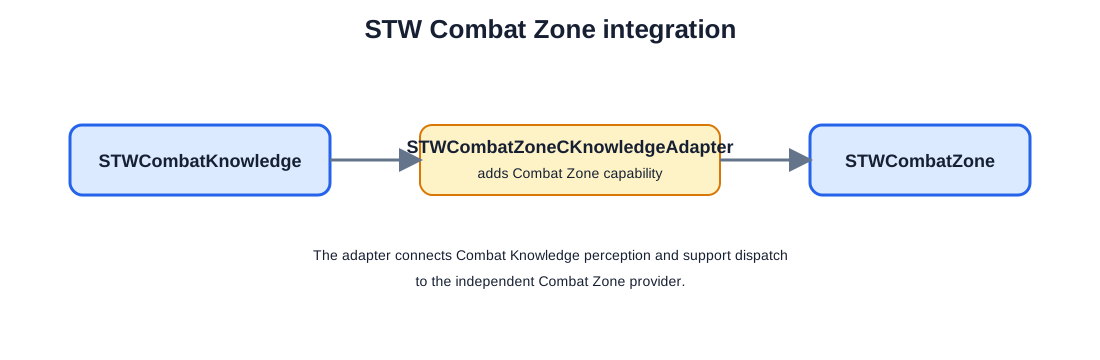
STWCombatZone is an independent Combat Zone provider. STWCombatZoneCKnowledgeAdapter adds Combat Zone capabilities to STWCombatKnowledge, allowing Combat Knowledge perception and automated support decisions to issue Combat Zone support orders.
FPV drone modules
STWFPVDrone is the standalone server-authoritative drone system. STWSpecialForces assigns drones to Special Forces teams. The optional STWFPVDroneDACAdapter publishes player detections to DAC surveillance, while STWFPVDroneEnvironmentAdapter validates routes around forests and buildings.
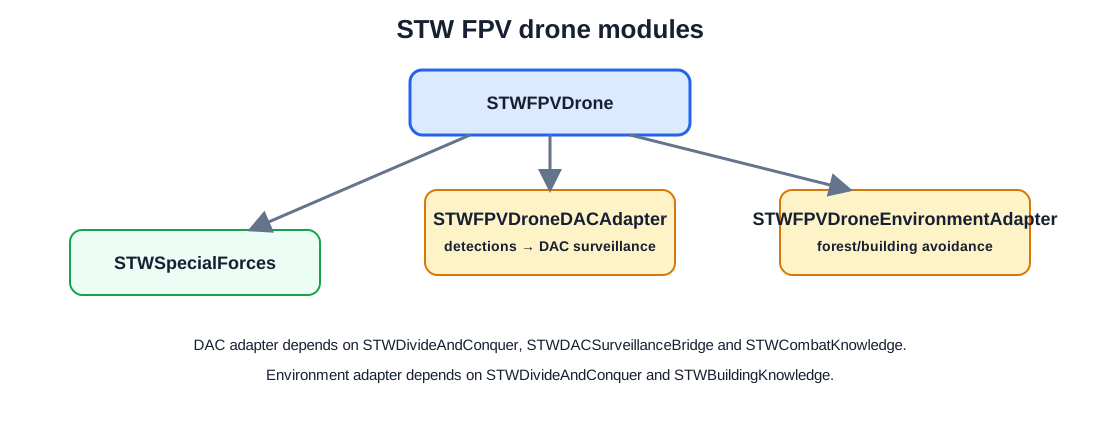
Dependency flow: STWFPVDrone → STWSpecialForces; STWFPVDrone → STWFPVDroneDACAdapter → STWDivideAndConquer, STWDACSurveillanceBridge and STWCombatKnowledge; STWFPVDrone → STWFPVDroneEnvironmentAdapter → STWDivideAndConquer and STWBuildingKnowledge.
Optional integrations and bridge mods
STWDivideAndConquer is fully usable on its own, but the complete STW campaign experience comes from combining it with the optional systems that populate the strategic map, create varied encounters, improve AI reactions, and connect battlefield support to territory ownership. Install the compatible projects on both the server and clients when you want these features.
Recommended campaign companions
- STWStronghold adds strategic stronghold encounters and fortified objectives.
- STWCQB (STW Close Quarters Battle) adds CQB encounters and settlement-level combat activity.
- STWSpecialForces adds special-forces activity and compatible special-forces gameplay content.
- STWCombatKnowledge gives AI groups shared perception, combat awareness, and more coherent tactical reactions during CQB and Stronghold encounters.
Optional reinforcement and battlefield providers
- STWSnipers and STWAntiAirTeam are optional for both STWCombatKnowledge and STWDivideAndConquer. They provide additional sniper/spotter and anti-air reinforcement options.
- STWMinefields is optional for STWStronghold and STWDivideAndConquer. It can connect minefield activity to stronghold and frontline territory.
- STWHeavyWeapons is optional for STWStronghold and STWDivideAndConquer. It adds faction mortar support and heavier battlefield presence.
When bridge mods are needed
Bridge mods are only required when connecting an optional provider to the specific system named by the bridge. Use STWDACHeavyWeaponBridge when STWDivideAndConquer and STWHeavyWeapons should share territory-aware mortar management. Use STWStrongholdHWeaponsBridge when STWStronghold and STWHeavyWeapons should work together for Heavy Weapons checkpoint or support integration. Use STWDACSurveillanceBridge when STWDivideAndConquer and the compatible surveillance provider should share DAC territory or surveillance integration. Do not install a bridge when its two endpoint systems are not installed together.
None of these optional projects is required for the core campaign to start. However, installing the complete compatible set makes the strategic layer feel more alive: territory can influence encounters, reinforcements, defensive systems, artillery, surveillance, and AI reactions instead of existing as isolated features.
STW Mod Directory
Find each STW mod’s Workshop page and online manual here. STW Divide&Conquer Enhanced is documented in this guide because it is an add-on to the original STW Divide And Conquer.
| STW mod | Workshop | Manual |
|---|---|---|
| STW Divide And Conquer | Workshop | Manual |
| STW Divide&Conquer Enhanced | Workshop | This guide |
| STW Anti-Air Team | Workshop | Manual |
| STW Air Drops | Workshop | Manual |
| STW Armored Spawner | Workshop | Manual |
| STW Bases Generator | Workshop | Manual |
| STWBasesDACIntegration | Workshop | This guide |
| STW Boats Spawner | Workshop | Manual |
| STW Choppers | Workshop | Manual |
| STW Civilians Spawner | Workshop | Manual |
| STW Close Quarters Battle | Workshop | Manual |
| STW Combat Helipads Light | Workshop | Manual |
| STW Combat Knowledge | Workshop | Manual |
| STW Combat Support API | Workshop | Manual |
| STW Crates | Workshop | Manual |
| STW Experience | Workshop | Manual |
| STW Garbage System | Workshop | Manual |
| STW Heavy Weapons | Workshop | Manual |
| STW Light Vehicle Spawner | Workshop | Manual |
| STW Mine Fields | Workshop | Manual |
| STW Parachute Spawn Point | Workshop | Manual |
| STW Snipers & Spotters | Workshop | Manual |
| STW Stronghold | Workshop | Manual |
| STW Tanks Spawner | Workshop | Manual |
| STW Task Commander | Workshop | Manual |
| STW Transport Helipads | Workshop | Manual |
| STW Zombies Spawner | Workshop | Manual |
STW Bases, Crates and Divide and Conquer
STWBasesGenerator creates and persists faction bases, spawn points, arsenals and related base entities. STW Crates is a standalone crate system, while STW Bases-Crates Integration optionally creates or reuses a faction crate for each generated base.
STWBasesDACIntegration is a separate optional compatibility mod. It connects STWBasesGenerator to STWDivideAndConquer without making either core project depend on the other. It can restrict generated-base placement to D&C-owned or frontline cells, optionally use D&C shoreline cells in shoreline mode, remove a base and its associated entities when its cell is captured, and notify the Bases-Crates integration so the associated crate is removed too.
The Bases and Crates systems remain usable without D&C. The DAC integration is only needed when base placement and base lifetime should follow D&C territory ownership. Its profile configuration is stored at $profile/STW/DivideAndConquer/STWBasesDivideAndConquerConfiguration.json. Custom Bases factions, including RHS factions, can be mapped explicitly to D&C RED or BLUE in that file.
The STW Mods Complete Experience
STW Divide And Conquer is the foundation: it provides the strategic campaign and the front line that the other systems can build upon. STW Divide&Conquer Enhanced makes that experience better by adding optional strategic reinforcements and integrations with compatible STW addons. STW Combat Knowledge makes the experience complete by giving the battlefield a deeper sense of awareness, reaction and combat support.
Dependency diagram
1. STW Divide And Conquer
Required foundation for the strategic campaign.
2. STW Divide&Conquer Enhanced
ADD ON that enhances the original campaign. It requires the foundation above; it is not a substitute for it.
3. STW Combat Knowledge
Recommended companion that completes the tactical experience.
↓ Complete STW campaign experience ↓
Optional compatible addons, such as STW Snipers & Spotters and STW Anti-Air Team, can provide additional battlefield activity when installed.
Recommended server setup
- Install and enable STW Divide And Conquer.
- Install and enable STW Divide&Conquer Enhanced.
- Install and enable STW Combat Knowledge.
- Add compatible optional addons when desired.
In one sentence
Divide And Conquer is the foundation, Divide&Conquer Enhanced improves it, and Combat Knowledge completes the experience.
Working STW Servers Configuration
The STW Divide And Conquer and STW Combat Knowledge profile configuration is a complete working configuration for STW Servers. Use it as a guideline when configuring your own server and adapt the settings to your scenario, map, mod list and hardware.
Download the working configuration ZIP
To use it, download the ZIP and decompress it directly under the main profile folder. Its contents are arranged so the included files are placed in the expected profile structure, including $profile/STW.
Recommended Mod List
The STWModList.txt recommended mod list is a categorized collection of Workshop links for content commonly used with STW servers. It includes RHS, vehicles and helicopters, ACE, weapons, parachute content and STW addons in an easy-to-copy text format.
Open the list to follow the Workshop links, or download it and keep it beside your server setup notes. Lines beginning with -- identify entries that are currently unavailable or should not be treated as active recommendations. Installing a mod from this list still happens through the Workshop; the text file does not install or enable mods automatically.
Download the recommended mod list
What to expect the first time
Let the server finish. Once the strategical database files exist, the system can restart quite quickly on later launches. The first run is the heavy one because STW is preparing the information it needs instead of repeatedly rebuilding it every time the server starts.
While those files are not present, the system may respond very slowly. That can look like a problem during the first run, but it is usually the expected cost of preparing the scenario. Avoid repeatedly restarting the server during generation, because each interrupted run can delay the point at which the files are ready.
Configuration for administrators
The mods arrive preconfigured with settings intended to be friendly to low-end systems and with no RHS presence assumed. This gives a sensible starting point for a broad range of servers; it does not mean every map, mod collection or player count will need identical settings.
Make configuration changes in the corresponding files under $profile/STW. Each system has its own folder and configuration file. Stop the server before editing, make one deliberate change at a time, and restart it so the new values are loaded cleanly.
Good starting point
- Use the shipped defaults first.
- Confirm the scenario works without RHS before adding more faction or asset dependencies.
- Give first-run database generation enough uninterrupted time.
When tuning
- Increase activity gradually on low-end hardware.
- Use the specific system manual to identify its configuration file.
- Keep a copy of working files before making larger changes.
$profile/STW, not in the addon files. Profile settings are the administrator’s safe place to tune the installed systems for a particular server and scenario.Performance tuning
For a smoother server, activate -aiPartialSim on the server. This lets the server use partial AI simulation and is especially useful when a scenario has many active AI groups. Apply the launch option to the authoritative server rather than relying on individual clients.
It is also advised to use a cleanup system such as STW Garbage System. Removing eligible wrecks, bodies, inventory items and other accumulated clutter helps keep long-running 24/7 sessions healthy. Tune cleanup carefully for your scenario so deliberately placed or distant encounters are not removed unexpectedly.
Make these choices alongside the STW settings under $profile/STW, then test them on the actual map and mod list used by the server. Large maps, high player counts and heavily populated scenarios may need more conservative spawn and cleanup settings even when the shipped defaults run well on a smaller test.
Useful Mod Links and JSONs
STW Mods JSONs
Copy the complete list below into the appropriate mod list or configuration file.
Show STW Mods JSONs
[
{
  "modId": "6A3950D64F1072DA",
  "name": "STW Air Drops",
  "required": false
},
{
  "modId": "69EAA987F3AD55D1",
  "name": "STW Heavy Weapons",
  "required": false
},
{
  "modId": "69F145357FF8207B",
  "name": "STW Armored Spawner",
  "required": false
},
{
  "modId": "69E531416F617BDB",
  "name": "STW Crates",
  "required": false
},
{
  "modId": "69DCCEB968B92571",
  "name": "STWBasesGenerator",
  "required": false
},
{
  "modId": "6A0A3E8B6A9C0719",
  "name": "STW Experience",
  "required": false
},
{
  "modId": "69E72E8A33B7C43A",
  "name": "STW Bases-Crates Integration",
  "required": false
},
{
  "modId": "6AB8AB6C6E42CEAB",
  "name": "STWBasesDACIntegration",
  "required": false
},
{
  "modId": "69E12A944C6AE5AA",
  "name": "STW Garbage System",
  "required": false
},
{
  "modId": "69DF24C9E5BEE30C",
  "name": "STW Tanks Spawner",
  "required": false
},
{
  "modId": "69E8B2129CC185F7",
  "name": "STW Parachute SpawnPoint",
  "required": false
},
{
  "modId": "6A492D2543718567",
  "name": "STW Combat Knowledge",
  "required": false
},
{
  "modId": "6A268552E2B571AF",
  "name": "STW Light Vehicle Spawner",
  "required": false
},
{
  "modId": "6A1D7AF1060F02F4",
  "name": "STW Transport Helipads",
  "required": false
},
{
  "modId": "69FE5939649668A2",
  "name": "STW Mine Fields",
  "required": false
},
{
  "modId": "6A0C1B4265742EBC",
  "name": "STW Snipers & Spotters",
  "required": false
},
{
  "modId": "6A2C8C45F744CB17",
  "name": "STW Combat Helipads Light",
  "required": false
},
{
  "modId": "6A4685D07BA826A5",
  "name": "STWCombatSupportAPI",
  "required": false
},
{
  "modId": "6A58D4467C928606",
  "name": "STW Road Network",
  "required": false
},
{
  "modId": "69FB76C0D035957E",
  "name": "STW Stronghold",
  "required": false
},
{
  "modId": "A9D7F20C4E8B61F3",
  "name": "STW Close Quarters Battle",
  "required": false
},
{
  "modId": "6A66A8B970871EE2",
  "name": "STW Building Knowledge",
  "required": false
},
{
  "modId": "6A6B2BE0558DA3DF",
  "name": "STW Zombies Spawner",
  "required": false
},
{
  "modId": "6A608395674B259E",
  "name": "STW Zone Exclusion",
  "required": false
},
{
  "modId": "69E0A48B209F861A",
  "name": "STW Civilians Spawner",
  "required": false
},
{
  "modId": "69DEAA8B1AA2931E",
  "name": "STW Boats Spawner",
  "required": false
},
{
  "modId": "6A2EC47163C7DE19",
  "name": "STW Task Commander",
  "required": false
}
]
Parachutes for STW Parachute Spawn Point
Show parachute JSONs
[
{
  "modId": "65930CB4CD0237B2",
  "name": "Parachute Framework",
  "required": false
},
{
  "modId": "6867754CA817D856",
  "name": "MFF Parachute",
  "required": false
},
{
  "modId": "69735D889EA31A8B",
  "name": "Parachute SOA V2",
  "required": false
},
{
  "modId": "68996556700D5CA1",
  "name": "Prontos Parachutes",
  "required": false
}
]
IFVs and Tanks
Show IFVs and Tanks JSONs
[
{
  "modId": "5D1880C4AD410C14",
  "name": "M1 Abrams",
  "required": false
},
{
  "modId": "5E524E4FEECCA92B",
  "name": "BMP-1 IFV",
  "required": false
},
{
  "modId": "5B383D4CB27E0D54",
  "name": "BMP-3 IFV",
  "required": false
},
{
  "modId": "65171C2883CB81B4",
  "name": "BTR 152",
  "required": false
},
{
  "modId": "5E5C154FEE1094BB",
  "name": "M113 APC",
  "required": false
},
{
  "modId": "63120AE07E6C0966",
  "name": "M2 Bradley Fighting Vehicle",
  "required": false
},
{
  "modId": "685952488F7E3CBA",
  "name": "CIE Leopard 2A6",
  "required": false
}
]
Helicopters
Show Helicopters JSONs
[
{
  "modId": "628933A0D3A0D700",
  "name": "WCS_Mi-24V",
  "required": false
},
{
  "modId": "609E138FE9005877",
  "name": "Mi-28",
  "required": false
},
{
  "modId": "64CB35D07BAEE60F",
  "name": "WCS_KA-52",
  "required": false
},
{
  "modId": "64CB39E57377C861",
  "name": "WCS_AH-1S",
  "required": false
},
{
  "modId": "6303360DA719E832",
  "name": "WCS_AH-64D",
  "required": false
},
{
  "modId": "6273146ADFE8241D",
  "name": "WCS_AH-6M",
  "required": false
},
{
  "modId": "6704485615D2D3C3",
  "name": "H-47 Chinook - Fastroping",
  "required": false
}
]
Mod Lists
STW Mods JSONs
# STW Air Drops
https://reforger.armaplatform.com/workshop/6A3950D64F1072DA
# STW Heavy Weapons
https://reforger.armaplatform.com/workshop/69EAA987F3AD55D1
# STW Armored Spawner
https://reforger.armaplatform.com/workshop/69F145357FF8207B
# STW Crates
https://reforger.armaplatform.com/workshop/69E531416F617BDB
# STWBasesGenerator
https://reforger.armaplatform.com/workshop/69DCCEB968B92571
# STW Experience
https://reforger.armaplatform.com/workshop/6A0A3E8B6A9C0719
# STW Bases-Crates Integration
https://reforger.armaplatform.com/workshop/69E72E8A33B7C43A
# STW Garbage System
https://reforger.armaplatform.com/workshop/69E12A944C6AE5AA
# STW Tanks Spawner
https://reforger.armaplatform.com/workshop/69DF24C9E5BEE30C
# STW Parachute SpawnPoint
https://reforger.armaplatform.com/workshop/69E8B2129CC185F7
# STW Combat Knowledge
https://reforger.armaplatform.com/workshop/6A492D2543718567
# STW Light Vehicle Spawner
https://reforger.armaplatform.com/workshop/6A268552E2B571AF
# STW Transport Helipads
https://reforger.armaplatform.com/workshop/6A1D7AF1060F02F4
# STW Mine Fields
https://reforger.armaplatform.com/workshop/69FE5939649668A2
# STW Snipers & Spotters
https://reforger.armaplatform.com/workshop/6A0C1B4265742EBC
# STW Combat Helipads Light
https://reforger.armaplatform.com/workshop/6A2C8C45F744CB17
# STWCombatSupportAPI
https://reforger.armaplatform.com/workshop/6A4685D07BA826A5
# STW Road Network
https://reforger.armaplatform.com/workshop/6A58D4467C928606
# STW Stronghold
https://reforger.armaplatform.com/workshop/69FB76C0D035957E
# STW Close Quarters Battle
https://reforger.armaplatform.com/workshop/A9D7F20C4E8B61F3
# STW Building Knowledge
https://reforger.armaplatform.com/workshop/6A66A8B970871EE2
# STW Zombies Spawner
https://reforger.armaplatform.com/workshop/6A6B2BE0558DA3DF
# STW Zone Exclusion
https://reforger.armaplatform.com/workshop/6A608395674B259E
# STW Civilians Spawner
https://reforger.armaplatform.com/workshop/69E0A48B209F861A
# STW Boats Spawner
https://reforger.armaplatform.com/workshop/69DEAA8B1AA2931E
# STW Task Commander
https://reforger.armaplatform.com/workshop/6A2EC47163C7DE19
Parachutes for STW Parachute Spawn Point
# Parachute Framework
https://reforger.armaplatform.com/workshop/65930CB4CD0237B2
# MFF Parachute
https://reforger.armaplatform.com/workshop/6867754CA817D856
# Parachute SOA V2
https://reforger.armaplatform.com/workshop/69735D889EA31A8B
# Prontos Parachutes
https://reforger.armaplatform.com/workshop/68996556700D5CA1
IFVs and Tanks
# M1 Abrams
https://reforger.armaplatform.com/workshop/5D1880C4AD410C14
# BMP-1 IFV
https://reforger.armaplatform.com/workshop/5E524E4FEECCA92B
# BMP-3 IFV
https://reforger.armaplatform.com/workshop/5B383D4CB27E0D54
# BTR 152
https://reforger.armaplatform.com/workshop/65171C2883CB81B4
# M113 APC
https://reforger.armaplatform.com/workshop/5E5C154FEE1094BB
# M2 Bradley Fighting Vehicle
https://reforger.armaplatform.com/workshop/63120AE07E6C0966
# CIE Leopard 2A6
https://reforger.armaplatform.com/workshop/685952488F7E3CBA
Helicopters
# WCS_Mi-24V
https://reforger.armaplatform.com/workshop/628933A0D3A0D700
# Mi-28
https://reforger.armaplatform.com/workshop/609E138FE9005877
# WCS_KA-52
https://reforger.armaplatform.com/workshop/64CB35D07BAEE60F
# WCS_AH-1S
https://reforger.armaplatform.com/workshop/64CB39E57377C861
# WCS_AH-64D
https://reforger.armaplatform.com/workshop/6303360DA719E832
# WCS_AH-6M
https://reforger.armaplatform.com/workshop/6273146ADFE8241D
# H-47 Chinook - Fastroping
https://reforger.armaplatform.com/workshop/6704485615D2D3C3
If the system seems slow
- Check whether this is the first run for the scenario and whether the strategical database files have been generated yet.
- If it is the first run, allow the server to continue running. Huge maps can take over an hour.
- After generation, restart the server and compare startup and response time.
- If the problem remains, review the relevant file under
$profile/STW, reduce activity using that system’s manual, and check the server log for errors.
For detailed behaviour and settings, open the manual for STW Combat Knowledge, STW CQB, STW Stronghold, STW Civilians or STW Zombies.
More STW help
Use this page as the starting point, then open the relevant system manual when you are ready to tune behaviour.